Friday, 15 June 2018

Calculate purchase/sales confirmation GST tax at line level (IGST/CGST/SGST) in AX 2012 R3


Get financial dimension by Recid.

Get financial dimension by Recid.

public static container getFinancialDimensionsByRecId(RecId     _defaultDimension)
{
    DimensionAttributeValueSetStorage    dimStorage;
    Counter                              i;
    container                            ctr;
    ;

    dimStorage = DimensionAttributeValueSetStorage::find(_defaultDimension);

    for (i=1 ; i<= dimStorage.elements() ; i++)
    {
        ctr   += [DimensionAttribute::find(dimStorage.getAttributeByIndex(i)).Name, dimStorage.getDisplayValueByIndex(i)];
    }

    return ctr;
}

Get vendor's and customer's GST number in AX 2012 R3

Hi guys,
IN GST era, It is very common term GST. So here I'm discussing how to get vendor's GST number in X++ AX 2012 R3 and It is very simple to refer below sample code.

 And similarly, you can get Customer's GST number and sometimes we get requirement from client to print warehouse or Company GST number so just refer this below job and modify as per the requirement.

Static void   getVendorGST(AccountNum     _accountNum)
{
    VendTable           vendTable;
    DirPartyTable       dirPartyTable;
    LogisticsLocation   logisticsLocation;
    TaxInformation_IN   taxInformation_IN;

    select vendTable where vendTable.AccountNum == _accountNum
        join dirPartyTable
            where dirPartyTable.RecId == vendTable.Party
        join logisticsLocation
            where logisticsLocation.RecId == dirPartyTable.PrimaryAddressLocation;


    taxInformation_IN   = TaxInformation_IN::findDefaultbyLocation(logisticsLocation.RecId);
    return TaxRegistrationNumbers_IN::find(taxInformation_IN.GSTIN).RegistrationNumber;
}

Happy DAxing......

Reverse string in Dynamics AX.

Hi guys,
Reverse string in Dynamics AX.

static void reverseString(Args _args)
{
    int     i;
    str     temp;
    str     retVar = 'DynamicsAX';
    int     length;
    str     getvalue,RV;
    ;
    length = strLen(retVar);
    for(i=length; i>=1; i--)
    {
        temp =SubStr(retVar,i,1);
        getvalue +=temp;

        // other way with strReverse function
        RV = strReverse(retVar);
    }
    info(RV);
}

Add filter on display method on form control in AX 2012 R3


Get customer email in ax 2012

Get customer email in ax 2012

static void Custermail(Args _args)
{
    LogisticsElectronicAddress          led;
    LogisticsLocation                   ll;
    CustTable                           ct;

    DirPartyLocation     dpl;
    str phone,fax,email,url;
    RecId  RecId;
    ;
    select  ct where ct .AccountNum =='ABC'
    join dpl where ct.Party == dpl.Party
    join led where led.Location == dpl.Location
    && led.IsPrimary == NoYes::Yes
    && led.Type == LogisticsElectronicAddressMethodType::Email;
    {
        email =  led.Locator;
        info(email);
    }
}


Calculate Purchase order confirmation tax details (IGST/CGST/SGST) in AX 2009

Hi guys,

I was struggling  to calculate the GST taxes on purchase order confirmation. Here i am sharing some code to get Taxes details (IGST/CGST/SGST) in AX 2009.

static void GSTTotal(Args _args)
{
    vendPurchOrderJour vendPurchOrderJour;
    ITaxDocument taxDocument;
    ITaxDocumentComponentLineEnumerator componentLineEnumerator;
    ITaxDocumentComponentLine componentLineObject;
    ITaxDocumentMeasureEnumerator measureEnumerator;
    TaxAmount taxAmount,taxValue;
    TaxComponent_IN taxComponent;
    ;
    vendPurchOrderJour = vendPurchOrderJour::findRecId(5637291565); //Need to pass Confirmation journal recid
    taxDocument = TaxBusinessService::getTaxDocumentBySource(vendPurchOrderJour.TableId, vendPurchOrderJour.RecId);

    componentLineEnumerator = taxDocument.componentLines();

    while(componentLineEnumerator.moveNext())
    {
        componentLineObject = componentLineEnumerator.current();

        taxComponent = componentLineObject.metaData().taxComponent();
        taxValue = componentLineObject.getMeasure("Rate").value().value() * 100;
        taxAmount = componentLineObject.getMeasure("Tax Amount").value().value();

        info(strFmt("Component %1 ,Rate %2, Amount%3",taxComponent,taxValue,taxAmount));
    }
}


Happy DAXing.

Friday, 1 June 2018

AX7/D365/Operations: Create Details Master pattern form

AX7/D365/Operations: Create Details Master pattern form

Purpose:

The purpose of this document is to demonstrate how we can develop a Details Master form in Dynamics 365 for Operations. While doing so, it also shows how to apply the new form patternsand subpatterns.
Please note that the new Details Master pattern (Dynamics 365 for Operations) obsoletes the older ListPage pattern (AX 2012).

Prerequisites:

  • Access to Dynamics 365 for Operations instance via remote desktop.
  • To be provisioned as an administrator for the instance.
  • Visual Studio project, model, package have been created.
  • Custom table MAKInventRawMaterial has been created in the project.

Business requirement:

Ability to maintain records in a grid and detail view within the same form.

Development:

1. Click Ctrl+Shift+A to add new item to the project.
2. Navigate to User Interface > Form. Give a suitable name, MAKInventRawMaterial.
Form1
3. Drag and drop MAKInventRawMaterial table from the project to the Data Sources node.
Form2
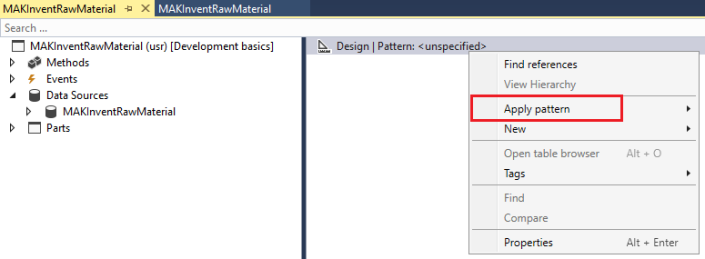
4. Right-click Design node. Click Apply pattern > Details Master.
Form3
5. Once the pattern gets applied, open the Pattern pane to see the missing controls which need to be added to comply with the pattern.
Form4
6. Add the identified missing controls to the Design node in the same order as shown in the pattern tab.
Form5
7. As you can see after adding the required controls the violations have been but still there are some warnings.
8. Navigate to FormGroupControlNavigationList to view its Pattern tab. We still have missing controls for our Navigation List control.
Form6
9. Adding the identified missing controls resolves the pattern issues.
Form7
10. Repeat steps 6 – 9 till all the pattern and subpattern issues have been resolved by adding the missing controls. At the end of the process, you will have a completed form ready to add data source fields to.
11. Add the following field groups to the Details panel from data source table.
Form8DetailsTab
12. Add the AutoReport field group to the Grid control of the Grid panel.
Form9GridTab
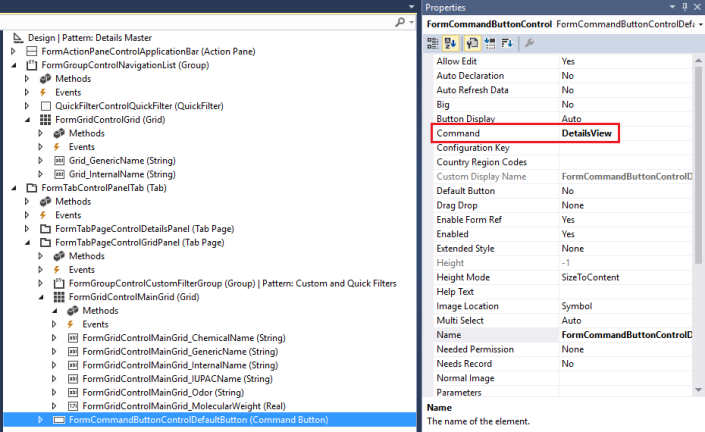
13. Navigate to FormCommandButtonControl and set Command property to DetailsView.
Form10CommandButtonDetailsView
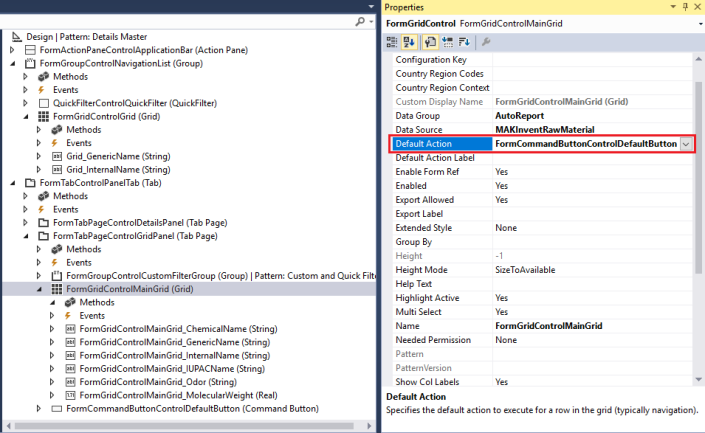
14. Navigate to FormGridControl and set Default Action property to the FormCommandButtonControl.
Form11GridDefaultAction
15. Right-click Project > Forms > MAKInventRawMaterial. Click Set as Startup Object.
StartupObject
16. Select project in your Solution Explorer and click Start in Visual Studio.
17. You should be able to see your form in action in the browser.
18. Grid view.
Form12GridView
19. Details view.
Form13DetailsView

Dynamics 365 AX7 - Create Model and Project - First step to start with development

Dynamics 365 AX7 - Create Model and Project - First step to start with development


This post describes how to create model with correct selection of package which leads to correct development approach either Extension or Overlayering (Customization)

Go to Dynamics 365 or AX7 | Deploy | Create model


Enter required information as shown


Choose correct package


If you decided to go with overlayering, existing package will be selected from dropdown.


Select referenced packages

For this example; I will go with extension development approach, it is easy to upgrade with new versions or updates coming from MS.

Marked all required packages (models) which can be referenced through your new created model. Through these references, you can actually use the element living in those packages (models), without these references you cannot access any element belongs to a different model.

Lets' say you want to access CustTable which belongs to Application Suite package then you have to checked Application Suite package in referenced package list.


Create model Summary

Create new project option will open a new window where you can put the project name linked with this model.

NOTE: A project can only be linked with one model


Project created in Visual Studio


Update model parameters

You may require to update model parameters by adding more reference packages. This can be done as follows;


Select model name to update


Add or remove reference packages 


Click Next will take you model summary screen and will update the project in Visual Studio with updated references. Reference

Monday, 15 January 2018

Create stored procedure to output structured XML using FOR XML EXPLICIT

Create stored procedure to output structured XML using FOR XML EXPLICIT


This article gives the steps to create a stored procedure to output structured XML using For XML Explicit. I am assuming you already know what xml explicit is and you want to know the steps to create it. The article uses SQL Server 2008 R2 and AdventureWorks2008R2 database which can be downloaded from: http://msftdbprodsamples.codeplex.com/
To output data in a customized XML structure, we need to use FOR XML EXPLICIT clause. The recommendation is to use the following steps:
  • Write a select statement per table
1
2
3
4
5
6
7
8
9
10
11
12
13
14
15
16
17
18
19
20
21
22
23
24
25
26
27
28
29
30
31
32
33
34
35
36
37
38
39
use AdventureWorks2008R2;
go
SELECT [BusinessEntityID]
,[Title]
,[FirstName]
,[MiddleName]
,[LastName]
FROM [Person].[Person]
 
SELECT [BusinessEntityID]
,[AddressID]
,[AddressTypeID]
FROM [Person].[BusinessEntityAddress]
 
SELECT [AddressTypeID]
,[Name]
FROM [Person].[AddressType]
 
SELECT [AddressID]
,[AddressLine1]
,[AddressLine2]
,[City]
,[StateProvinceID]
,[PostalCode]
FROM [Person].[Address]
 
SELECT [StateProvinceID]
,[Name]
FROM [Person].[StateProvince]
 
SELECT [BusinessEntityID]
,[PhoneNumber]
,[PhoneNumberTypeID]
FROM [Person].[PersonPhone]
 
SELECT [PhoneNumberTypeID]
,[Name]
FROM [Person].[PhoneNumberType]
GO
  • Now try to join the statements to group the columns that need to be displayed in one element in your final XML document. For example, we want to display the columns of BusinessEntityAddress, AddressType, and Address in one element.
1
2
3
4
5
6
7
8
9
10
11
12
13
14
15
16
17
18
19
20
21
22
23
24
25
26
27
28
29
30
31
32
33
use AdventureWorks2008R2;
go
 
SELECT [BusinessEntityID]
,[Title]
,[FirstName]
,[MiddleName]
,[LastName]
FROM [Person].[Person]
SELECT E.[BusinessEntityID]
,A.[AddressID]
,T.[Name]
,[AddressLine1]
,[AddressLine2]
,[City]
,S.[Name]
,[PostalCode]
FROM [Person].[Address] A
INNER JOIN [Person].[BusinessEntityAddress] E
ON A.AddressID = E.AddressID
INNER JOIN [Person].[AddressType] T
ON E.AddressTypeID = T.AddressTypeID
INNER JOIN [Person].[StateProvince] S
ON S.StateProvinceID = A.StateProvinceID
 
SELECT [BusinessEntityID]
,[PhoneNumber]
,T.[Name]
FROM [Person].[PersonPhone] P
INNER JOIN [Person].[PhoneNumberType] T
ON P.PhoneNumberTypeID = T.PhoneNumberTypeID
 
GO
  • Now we are ready to output the above statements as one XML file. We will convert the above three result set s to three XML elements with the following hierarchy
1
2
3
4
<Person personId="1" fname="Ken" mname="J" lname="Sánchez">
<Address AddressId="249" type="Home" AddressLine1="4350 Minute Dr." city="Newport Hills" province="Washington" postalCode="98006" />
<Phone type="Cell" pnumber="697-555-0142" />
</Person>
  • To use FOR XML EXCIPLICT, each result set must have a unit Tag number as a column. For instance, the first result set Tag = 1, the second result set Tag = 2 and the third = 3. The tag number doesn’t appear in the final XML document but it is used as an ID for each result set so that we can relate them to each other. Each result set must have a Parent field as well. The parent field reference the Tag number of the result set’s parent. For example, the second result set’s parent field must be set to 1 which is the tag number of the first result set. The third result set should have the same values for the Tag and Parent fields as the second result set because they are both on the same level and have the same super node

Figure 3 FOR XML EXPLICIT syntax
From the above figure notice the following:
  • We are using Union All clause to Union the three result sets
  • Each result set must have the same number of fields in the select statement
  • First result set’s Parent is set to 0 (can be set to NULL as well) to indicate that it is the Root node while the send and third result sets’ parent is set to 1 to indicate that they are child nodes of Person.
  • Aliases are used for each field.
  • Alias format is [ElementName!TagNumber!AttribteName] and the valid of that attribute is the value of the field. For example, Element Name = Person, TagNumber =1, AttributeName=personId and the value of personId = 1.
  • Fields from other result sets are set to NULL
  • Tag number is not in the output XML file
  • Result sets two and three have a reference to their parent (i.e. person) using the BusinessEntityID (i.e Primary Key)
  • We must use Order By in the last result set otherwise the XML will not be formatted as desired
  • FOR XML EXPLICIT is only referenced in the last result set
1
2
3
4
5
6
7
8
9
10
11
12
13
14
15
16
17
18
19
20
21
22
23
24
25
26
27
28
29
30
31
32
33
34
35
36
37
38
39
40
41
42
43
44
45
46
47
48
49
50
51
52
53
54
55
56
57
58
59
60
61
62
63
64
65
66
67
68
69
70
use AdventureWorks2008R2;
go
 
SELECT 1 as Tag,
0 as Parent,
[BusinessEntityID] as [Person!1!personId],
[Title] as [Person!1!title],
[FirstName] as [Person!1!fname],
[MiddleName] as [Person!1!mname],
[LastName] as [Person!1!lname],
NULL as [Address!2!AddressId],
NULL  as [Address!2!type],
NULL  as [Address!2!AddressLine1],
NULL as [Address!2!AddressLine2],
NULL as [Address!2!city],
NULL as [Address!2!province],
NULL as [Address!2!postalCode],
NULL as [Phone!3!type],
NULL as [Phone!3!pnumber]
FROM [Person].[Person]
 
UNION ALL
 
SELECT 2 as Tag,
1 as Parent,
E.[BusinessEntityID],
NULL,
NULL,
NULL,
NULL,
A.[AddressID],
T.[Name],
[AddressLine1],
[AddressLine2],
[City],
S.[Name],
[PostalCode],
NULL,
NULL
FROM [Person].[Address] A
INNER JOIN [Person].[BusinessEntityAddress] E
ON A.AddressID = E.AddressID
INNER JOIN [Person].[AddressType] T
ON E.AddressTypeID = T.AddressTypeID
INNER JOIN [Person].[StateProvince] S
ON S.StateProvinceID = A.StateProvinceID
 
UNION ALL
 
SELECT 3 as Tag,
1 as Parent,
[BusinessEntityID],
NULL,
NULL,
NULL,
NULL,
NULL,
NULL,
NULL,
NULL,
NULL,
NULL,
NULL,
T.[Name],
[PhoneNumber]
FROM [Person].[PersonPhone] P
INNER JOIN [Person].[PhoneNumberType] T
ON P.PhoneNumberTypeID = T.PhoneNumberTypeID
ORDER BY [Person!1!personId], [Address!2!AddressId]
FOR XML EXPLICIT
  • Run the statement by hitting F5.
  • Click on the output field
Figure 4 Output of statement with FOR XML EXPLICIT clause
  • Validate the structure of the XML Document
  • Save the XML file in a directory with a friendly name
Figure 5 Saving XML document
  • Create a new stored procedure
Figure 6 Creating new stored procedure
  • Copy the select statement and paste it into the body of the stored procedure
  • Execute the script.
  • Validate the stored procedure exists under the stored procedures folder
link

Monday, 4 September 2017

uploadcustomertaxinfo

static void uploadcustomertaxinfo(Args _args)
{
    #AviFiles
    FilenameOpen filename;
    dialogField dialogFilename,DialogJournalType;
    LedgerDimensionAccount  mainAccDimension;
    int jounaltype;
    Dialog dialog= new Dialog("Excel Upoad");
    Container excelCont[], financialDimensions;
    RecId           offsetledger;

    int rowIdx;
    Counter linesImported;
    int lastRow,countr;
    boolean ok = true;
    LedgerDimensionAccount              ledgerDimension;
    InventTable                         inventTable;
    InventJournalName                   inventJournalName;
    InventJournalTable                  inventJournalTable;
    InventJournalTrans                  inventJournalTrans;
    NumberSeq                           numberSeq;
    Container                           con,defDimension;
    FileIOPermission                    permission;
    TextIO                              textIO, textIO1;
    //Dialog                              dialog;
    DialogField                         dialogField;
    //Filename                            Filename;
    LineNum                             lineNumber = 1;
    CustAccount                         custAccNum;
    InventJournalId                     journalNum;
    int                                 dimCount,dimCount2;

    LedgerJournalACType                 AccountType;
    InventDim                           inventDim;
    InventDimId                         dimId;
    InventJournalTrans_IN               InventJournalTrans_IN;
    str                                 custac;

    CustTable                   custTable;
    LogisticsLocation      logisticsLocation;
    DirPartyLocation       dirPartyLocation;
    TaxInformation_IN    taxInformation_IN;

    TaxRegistrationNumbers_IN  TaxRegistrationNumbers;


    //#File
    Description c1,c2,c3,c4,c5,c6,c7,c8,c9,c10,c11,c12,c13,c14,c15,c16,c17,c18,c19,c20,c21,c22,c23;

    str input;

    SysExcelApplication application;
    SysExcelWorkBooks workBooks;
    SysExcelWorkSheets workSheets;
    SysExcelWorkSheet workSheet;
    SysExcelCells cells;
    //dhiBusinessType dhiBusinessType;
    PurchaseType    purchaseType;
    DocumentStatus  documentStatus;
    VersioningDocumentState   documentState;
    SysOperationProgress progress;
    struct      struct= new Struct();

    #define.CurrentVersion(1)
    #localmacro.CurrentList
    filename
    #endmacro

    #Excel
    #define.Star('*')
    #define.Space(' ')


    // convert into str from excel cell value
    str COMVariant2Str(COMVariant _cv, int _decimals = 0, int _characters = 0, int _separator1 = 0, int _separator2 = 0)
    {
        switch (_cv.variantType())
        {
            case (COMVariantType::VT_BSTR):
            return _cv.bStr();
            case (COMVariantType::VT_R4):
            return num2str(_cv.float(),_characters,_decimals,_separator1,_separator2);

            case (COMVariantType::VT_R8):
            return num2str(_cv.double(),_characters,_decimals,_separator1,_separator2);

            case (COMVariantType::VT_DECIMAL):
            return num2str(_cv.decimal(),_characters,_decimals,_separator1,_separator2);

            case (COMVariantType::VT_DATE):
            return date2str(_cv.date(),123,2,1,2,1,4);

            case (COMVariantType::VT_EMPTY):
            return "";

            default:
            throw error(strfmt("@SYS26908", _cv.variantType()));
        }
        return "";
    }

    // Find last row from excel

    int findLastRow(SysExcelWorkSheet _workSheet)
    {
        SysExcelRange range;
        ;

        range = _workSheet.cells().range(#ExcelTotalRange);

        try
        {
            // Finds the row where the first contents is found.
            range = range.find(#Star, null, #xlFormulas, #xlWhole, #xlByRows, #xlPrevious);
        }
        catch (Exception::Error)
        {
            error("@SYS59926");
            return 0;
        }

        if (range)
        {
            return range.row();
        }
        else
        {
            return 0;
        }
    }


    ;


    dialogFilename = dialog.addField(extendedtypestr(FilenameOpen));
   // DialogJournalType = dialog.addField(enumstr(God_JournalToUpload),"Journal Type");
    dialog.filenameLookupFilter(["@SYS28576",#XLS,#Xlsx]);
    dialog.filenameLookupTitle("Upload from Excel");
    dialogFilename.value(filename);

    if(!dialog.run())
    return;

    filename = dialogFilename.value();

   // ttsbegin;

    application = SysExcelApplication::construct();
    workBooks = application.workbooks();
    workBooks.open(filename,0,true);

    workSheets = workBooks.item(1).worksheets();
    // this.importExcel("Sheet1");

    input = "Sheet1";
    workSheet = workSheets.itemFromNum(1);//.itemFromName(input);
    cells = workSheet.cells();
    lastRow = findLastRow(workSheet);
    rowIdx = 2;

    progress = new SysOperationProgress();
    progress.setCaption("Excel Importing");
    progress.setTotal(lastRow);
    progress.setAnimation(#AviTransfer);
    setprefix("Excel Import");
    try{

            while (rowIdx <= lastRow)
            {
                setPrefix(strfmt("Excel Row: %1", rowIdx));

                    c1              = COMVariant2Str(cells.item(rowIdx,1).value());
                    c2            = COMVariant2Str(cells.item(rowIdx,2).value());

                    custac = c1;
                linesImported++;

                InventJournaltrans.clear();

                    ttsBegin;
                select custTable where custTable.AccountNum== c1;

               select dirPartyLocation where dirPartyLocation.Party == custTable.Party;
                //join logisticsLocation where logisticsLocation.RecId == dirPartyLocation.Location
               select taxInformation_IN where taxInformation_IN.RegistrationLocation ==                       dirPartyLocation.Location ;
                if(!taxInformation_IN)
                {


                //select taxInformation_IN where taxInformation_IN.RegistrationLocation ==logisticsLocation.RecId;

                taxInformation_IN.RegistrationLocation  = dirPartyLocation.Location;
                taxInformation_IN.Name                  = c2;
                taxInformation_IN.IsPrimary             = NoYes::Yes;

                taxInformation_IN.insert();

                }


                ttsCommit;
                lineNumber++;
                rowIdx++;
                progress.setText("Importing " + c1);
                progress.setCount(linesImported);
               }
           }
           catch
       {
           error(strFmt("error in line %1",rowIdx));
       }
    info(strFmt("done! Imported %1 records",rowIdx-2));
}

Saturday, 2 September 2017

Export data to Excel by Code x++

Export data to Excel by Code x++

static void _CreateExcelDocument(Args _args)
{
SysExcelApplication  xlsApplication;
SysExcelWorkBooks    xlsWorkBookCollection;
SysExcelWorkBook     xlsWorkBook;
SysExcelWorkSheets   xlsWorkSheetCollection;
SysExcelWorkSheet    xlsWorkSheet;
SysExcelRange        xlsRange;
CustTable            custTable;
int                  row = 1;
str                  fileName;
;
Filename   fileName = “C:\\Excel.xlsx”;
//Initialize Excel instance here
xlsApplication           = SysExcelApplication::construct();
//Open Excel document from here
xlsApplication.visible(true);
//Create Excel WorkBook and WorkSheet
xlsWorkBookCollection    = xlsApplication.workbooks();
xlsWorkBook              = xlsWorkBookCollection.add();
xlsWorkSheetCollection   = xlsWorkBook.worksheets();
xlsWorkSheet             = xlsWorkSheetCollection.itemFromNum(1);
//Excel columns captions
xlsWorkSheet.cells().item(row,1).value(“Account Num”);
xlsWorkSheet.cells().item(row,2).value(“Name”);
row++;
//Fill Excel with CustTable AccountNum and Name fields (only 10 records)
while select custTable
{
if(row == 10)
break;
xlsWorkSheet.cells().item(row,1).value(custTable.AccountNum);
xlsWorkSheet.cells().item(row,2).value(custTable.Name);
row++;
}
//Check whether the document already exists
if(WinApi::fileExists(fileName))
WinApi::deleteFile(fileName);
//Save Excel document
xlsWorkbook.saveAs(fileName);
//Open Excel document
xlsApplication.visible(true);
//Close Excel
//xlsApplication.quit();
//xlsApplication.finalize();
}

Labels

#veryusefulcode (1) AIF (8) AOT Maps (1) Args (1) Ax 2009 Reports (2) AX 2012 navigation (1) Ax 2012 Interview Questions (1) AX 7 (2) AX Architecture (1) Ax Backup (1) AX Workflow (2) AX2012 (1) AX2012 R2 (1) Ax2012R3 (1) AX2012R3 Dynamics Connector Step by Step Installation and Configuration (1) AX2012R3 EP Step by Step Installation and Configuration EP R3 (1) AX2012R3 HelpServer Step by Step Installation and Configuration (1) AX2012R3 Rapid Start Connector Step by Step Installation and Configuration (1) AX2012R3 Report Server and Analysis Server Step by Step Installation and Configuration (1) AX7 (1) Best practices (1) Blocking user to enter (1) Collection Classes (1) Container (1) D365FO (3) Data Migration Frame Work ax 2012R3 (1) Deleting duplicate Record from Table – Ax2012 (1) Delivery due date notification workflow in Ax 2012 (1) Development Steps EP (1) Dimensions (1) DIXF (1) DMF in Ax 2012 R3 (1) Dynamics Ax 2012 Interview Questions (1) DYNAMICS AX 2012 INTERVIEW QUESTIONS PART 2 (1) DYNAMICS AX 7 (1) EDT relation Migration Tool (1) EP AX 2012 (1) Ep Lookup (1) Error (1) Event Handler (1) F5 (1) File Handling (4) Filter on AX2012 Listpage (1) filtering (2) financial dimensions in AX 2012 (3) form (1) images (1) Installation and Configration (4) Installation and Configuration (11) Installation of Management Reporter 2012 for AX 2012 (1) Interaction class in ax 2012 (1) Interview Question (1) Interview Questions For Ax 2012 (1) Invent DIm (1) Jobs (2) license (1) List page and form menuitem enable code (1) Methods (1) microsoft Dynamics AX 365FO (1) Number Sequence Generation – AX 2012 (5) Number Sequence2012 (1) OLTP-OLAP (1) Passing Args (1) Passing form caller and menu item caller in ax 2012 (1) Passing Multiple Records Args (1) Posting in Ax 2012 (1) POSTING PURCHASE ORDER (1) Query (1) Query Filter Form (2) Query Ranges in X++ (1) Question and Answer (1) Report (1) Reports Controller class (1) RLS in ax 2009 (1) SALES ORDER IMPORT/EXPORT FRAMEWORK BY DMF (1) Security (1) security roles (1) Security Sysqueryrangeutil (1) Sharepoint 2016 (1) SQL SERVER (1) SSRS (2) SSRS Reports Controller class (2) Table collections & Virtual company (1) Time (1) TIPS AND TRICKS (1) Web service AIF (3) Web Services on IIS (AIF) Step by Step Installation and Configuration (1) workflow ax2012 (1) Workflow installation (1) Workflow Method (3) X++ (1)