Thursday, 19 November 2015

EP Form Lookups [AX 2012]

Lookups [AX 2012]

Updated: July 26, 2011
Applies To: Microsoft Dynamics AX 2012 R2, Microsoft Dynamics AX 2012 Feature Pack, Microsoft Dynamics AX 2012
Several techniques can be used to create lookups for non-bound fields (fields that do not come from an AxDataSource). The simplest do not require any code to be added. More complex lookups have code that defines the lookup content. In some cases, the code is added to the page markup. In other cases, it is added to the code-behind file for the User Control.

Lookup Based on an Extended Data Type

The simplest lookup is based on an extended data type. Set the LookupType property for the lookup control to EDT. Set the ExtendedDataTypeproperty to the extended data type that will specify the lookup content. The columns displayed in the lookup will come from the TitleField1 andTitleField2 properties of the table associated with the extended data type.
If you want to specify which fields are contained in the lookup, you can do this in the markup for the lookup control. You can include fields that are part of the table associated with the extended data type. In the markup for the lookup control, add a <Fields> group that specifies which fields you want to include. The following example shows the markup for the lookup WorkOrdersLookup. It specifies that three fields are to be displayed in the lookup.
<dynamics:AxLookup ID="WorkOrdersLookup" runat="server" TargetControlId="WorkOrder1" 
    ExtendedDataType="WorkOrderNum" LookupType="EDT">
        <Fields>
            <dynamics:AxBoundField DataField="WorkOrderNum" SortExpression="WorkOrderNum" />
            <dynamics:AxBoundField DataField="RequestDate" SortExpression="RequestDate" />
            <dynamics:AxBoundField DataField="Details" SortExpression="Details" />
        </Fields>
</dynamics:AxLookup>

Instead of specifying the fields directly in the markup, you could specify them in the code-behind for the lookup control. Add the handler for theLookup event for the control. For information about adding an event handler, see User Control Events. In this event handler, specify the fields that will appear in the lookup. The following example shows how the Lookup event handler is used to specify the fields that appear in the lookup.
protected void WorkOrdersLookup_Lookup(object sender, AxLookupEventArgs e)
{
    AxLookup lookup = (AxLookup)sender;

    // Specify the lookup fields.
    lookup.Fields.Add(AxBoundFieldFactory.Create(AxSession, lookup.LookupDataSetViewMetadata.ViewFields["WorkOrderNum"]));
    lookup.Fields.Add(AxBoundFieldFactory.Create(AxSession, lookup.LookupDataSetViewMetadata.ViewFields["RequestDate"]));
    lookup.Fields.Add(AxBoundFieldFactory.Create(AxSession, lookup.LookupDataSetViewMetadata.ViewFields["Details"]));
}

Lookup Based on a Data Set

A lookup can be based on a data set that has been defined in the AOT. To do this, set the LookupType property for the lookup control to DataSetField. Set the DataSet property to the name of the data set that contains the content to use for the lookup. Set the DataSetView property to a view from the data set that contains the fields you want to use for the lookup. Set the DataLookupField property to the field from the data set view that you want returned from the lookup.

Lookup Based on Custom Data Set

A lookup can be based on a custom data set that is created in code. To do this, set the LookupType property for the lookup control to CustomDataSet.
Items from several namespaces must be available to create the data set for the lookup. The following using statements add the required namespaces.
using Proxy = Microsoft.Dynamics.Framework.BusinessConnector.Proxy;
using Microsoft.Dynamics.AX.Framework.Portal.Data;
using Microsoft.Dynamics.AX.Framework.Services.Client;

Add the handler for the Lookup event for the control. The following example shows how the Lookup event handler is used to create a data set dynamically based on a table. Then the data set is used for the lookup.
protected void WorkOrdersLookup_Lookup(object sender, AxLookupEventArgs e)
{
    AxLookup lookup = (AxLookup)sender;

    // Create the lookup data set. The Work Orders table will be used.
    Proxy.SysDataSetBuilder sysDataSetBuilder;
    sysDataSetBuilder = Proxy.SysDataSetBuilder.constructLookupDataSet(AxSession.AxaptaAdapter, TableMetadata.TableNum(AxSession, "FCMWorkOrders"));

    // Set the generated data set as the lookup data set.
    lookup.LookupDataSet = new DataSet(AxSession, sysDataSetBuilder.toDataSet());

    // Specify the fields for the lookup.
    lookup.Fields.Add(AxBoundFieldFactory.Create(AxSession, lookup.LookupDataSetViewMetadata.ViewFields["WorkOrderNum"]));
    lookup.Fields.Add(AxBoundFieldFactory.Create(AxSession, lookup.LookupDataSetViewMetadata.ViewFields["Details"]));
    lookup.Fields.Add(AxBoundFieldFactory.Create(AxSession, lookup.LookupDataSetViewMetadata.ViewFields["RequestDate"]));

    // Specify the select field for the lookup.
    lookup.SelectField = "WorkOrderNum";

}

Lookup Based on a User Control in the AOT

The content of a lookup can be defined by a User Control that has been added to the AOT. For example, you could create a User Control that uses the AxGridView component to define the contents of the lookup. The value returned by the lookup is based on the row selected in the AxGridView. The markup for the lookup control is edited to reference the managed content item.
<dynamics:AxLookup ID="WorkOrdersLookup" runat="server" LookupType="Custom" TargetControlId="WorkOrder1" PredefinedButtons="Ok">
    <ContentTemplate>
        <dynamics:AxContentPanel ID="AxContentPanel1" runat="server" ManagedContentItem="WorkOrderList" />
    </ContentTemplate>
</dynamics:AxLookup>
The User Control that is being used as a lookup must contain code that specifies the characteristics of the lookup. This code must also specify what value is returned from the lookup. Events registered by the User Control are used to do this. Since the User Control can also be used in a standard web part, this code must be run only when the control is being used as a lookup.
The following example is the Page_Init() method for a User Control that can be used in a lookup. The code determines whether the control is being used within a lookup. If it is, the characteristics of the lookup are set and the events for the lookup are registered.
void Page_Init(object sender, EventArgs e)
{
    // Determine whether the control is being used in a lookup.
    AxLookup lookupControl = AxLookup.GetLookup(this);
    if (lookupControl != null)
    {
        // It is a lookup, so set properties and register events.
        this.WorkOrdersGridView.ShowContextMenu = false;
        this.WorkOrdersGridView.ShowFilter = false;
        this. WorkOrdersGridView.AllowGrouping = false;

        // Register the events to handle.
        lookupControl.OkClicked += new EventHandler<AxLookupEventArgs>(lookupControl_OkClicked);
        lookupControl.Lookup += new EventHandler<AxLookupEventArgs>(lookupControl_Lookup);
    }
}
The following examples are the event handlers for the events that were registered for the lookup in the previous example. The Lookup event specifies what is selected in the lookup when it is displayed. The OkClicked event specifies what value is returned from the lookup when OK is clicked.
void lookupControl_Lookup(object sender, AxLookupEventArgs e)
{
    // Display the lookup contents and select the first row.
    this.WorkOrdersGridView.DataBind();
    this.WorkOrdersGridView.SelectedIndex = 0;
}

void lookupControl_OkClicked(object sender, AxLookupEventArgs e)
{
    DataSetViewRow currentRow;

    // Get the current row in the data source used for the control.
    currentRow = this.WorkOrderListDataSource.GetDataSourceView(this.WorkOrdersGridView.DataMember).DataSetView.GetCurrent();
    if (currentRow != null)
    {
        e.LookupControl.TargetITextControl.Text = (string)currentRow.GetFieldValue("WorkOrderNum");
    }
}

Multi-select Lookups

When you set the AllowMarking property to true for an AxLookup component, the user can mark multiple rows in the lookup. You can access the rows that have been marked by examining the data set for the lookup.
The following example is the event handler for the OkClicked event for the Work Order lookup. In this event, the GetMarkedRowsSet() method retrieves the set of rows that the user marked in the lookup. The Work Order Number field is read from each row in the set and assembled into a string that is displayed in a text box.
protected void WorkOrderLookup_OkClicked(object sender, AxLookupEventArgs e)
{
    string retval = "";
        
    // Look at each value returned from the multi-select lookup
    foreach (DataSetViewRow row in e.LookupControl.LookupDataSetView.GetMarkedRowsSet())
    {
        // Retrieve the Work Order Number from the current marked row
        retval = retval + row.GetFieldValue("WorkOrderNum").ToString() + " - ";
    }

    // Display the results in a text box
    WorkOrder1.Text = retval;
}

Monday, 16 November 2015

No more press F5, in dynamics ax

No more press F5, in dynamics ax

How to Use Form Method — Task()
Hi,
Task() – The user performs some task in a form by using the toolbar, the menu, or the keyboard.
For Example Here I am Closing the Form by pressing TAB
Steps:
1. Create a Form Ex: Test Form
2. In Design node Take string Edit Control.
3. Override task() method in Form Methods.
4. Set the Debug Mode on Task() method. Using this debug you can find Keyboard ID (like here we are doing through TAB)
5.Then Press F5.
6.Enter some text in String Edit control.
7.It will take to you  on Debug Mode.Here (ret = super(_taskId);) you will get the Task ID.
8.Then you can write the Code..
=========================
public int task(int _taskId)
{
int ret;

ret = super(_taskId);// task Id will get keys ID value
if(_taskId == 2827)//2827 is the TAB ID
element.close();

return ret;
}
Just write this code any where in AX no need to press F5.
element.task(2876);

Dimensions changed from 2009 format to 2012 format

Dimensions changed from 2009 format to 2012 format

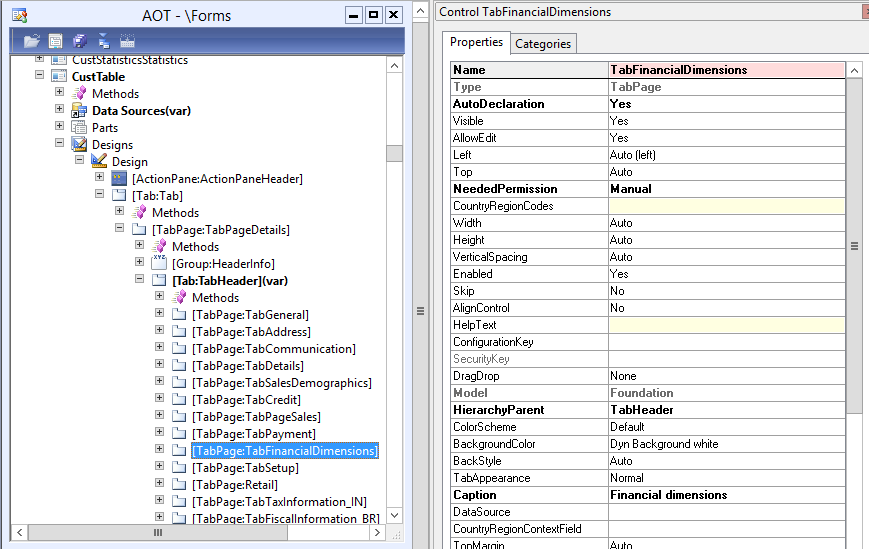
Copy tab form custtable form add to your form and give that “tabname” below
Capture
// in form calss decliration copy and past
public class FormRun extends ObjectRun
{
DimensionDefaultingController dimensionDefaultingControllerLine;
}
// in form init copy and past
public void init()
{
super();
dimensionDefaultingControllerLine= DimensionDefaultingController::constructInTabWithValues(true,true,true,0, this,tabname,”@SYS14926″);
dimensionDefaultingControllerLine.parmAttributeValueSetDataSource(BiddingMainCostSheetTable_ds,fieldstr(BiddingMainCostSheetTable, DimensionDefault));
dimensionDefaultingControllerLine.pageActivated();
}
Step 3: DataSource
public void delete()
{
;
ttsbegin;
super();
dimensionDefaultingControllerLine.deleted();
ttscommit;
}
Step 4: DataSource
public void write()
{
ttsbegin;
dimensionDefaultingControllerLine.writing();
super();
ttscommit;
}
Step 5: DataSource
public int active()
{
int ret;
ret = super();
dimensionDefaultingControllerLine.activated();//true);
return ret;
}

Monday, 5 October 2015

Create a Role Center in the Enterprise Portal of Microsoft Dynamics AX 2012

Overview

Role Centers provide an information overview of a user’s responsibilities within an organization. It may contain reports, cues, list data, and alerts. It is the first page that is visible when a user accesses Enterprise Portal in Microsoft Dynamics AX. This page is displayed as the Home page when the user views the Home site in Enterprise Portal.
The Role Center page can also be viewed from the AX client directly. To do this navigate toHome Ã  Role Center Ã  Main Menu.
There are also multiple Role Center pages for the various roles a user may have in Dynamics AX. If a user is not assigned any role, the default Role Center page is displayed.

Pre-requisites

  1. Microsoft Dynamics AX 2012
  2. SharePoint Foundation 2010
  3. IIS must be configured
  4. Enterprise Portal must be configured

Important Concepts

Pages

Pages are used to display content to users in the Enterprise Portal. There are several types of pages that can be used to organize content. The most common type used is a Web Part Page.

Web Parts

Web Parts are the basic building blocks to build Web Part Pages. Enterprise Portal uses Web Parts to display data as well as to provide interaction functionality for users.
In addition to the standard SharePoint Web Parts, Microsoft Dynamics AX contains several Web Parts to display Dynamic AX forms, reports, and cues in Enterprise Portal.
Web Parts can also be custom built using Microsoft Visual Studio.

User Profiles

User profiles correspond to specific roles within an organization. They contain a set of default information that pertains to a role.
Role Center pages are assigned to user profile. These determine which Role Center pages will be visible to the user. A user can be assigned to a single user profile per company.

Scenario

As part of this tutorial, the Role Center page will show the ‘All customers’ list page present in Microsoft Dynamics AX.

Steps

  1. First of all open the Enterprise Portal (EP) in a web browser. Go to System administration Ã  Setup Ã  Enterprise Portal Ã  Web sites
  • Click on View in browser to open it
  • The home page of the Enterprise Portal is then displayed
  • Now, go to Site Actions Ã  More Options…
  • In the newly opened window, select Page Template. Next, choose Web Part Pageand click on the Create button
  • In the next window, give a suitable Name for the page, select a Layout Template for the page and set the Document Library property to Enterprise Portal. Click Createto create the page
  • After the page has been created, new Web Parts can be added to it
  • To add a Web Part, click on Add a Web Part link on the body of the page
  • Select Microsoft Dynamics AX in the Categories group, then select List in the Web Parts type group and click Add
  • Once the new Web Part has been added, set its properties so that it points to the correct control form
  • Click on the inverted triangle on the top right hand side of the newly created Web Part and select Edit Web Part
  • In the Microsoft Dynamics AX section, write CustTableListPage as theListPageMenuItemName. It will show the ‘All customers’ list page in the Enterprise Portal. Also give a suitable Title
  • Click Ok to save the changes
  • Now open the AOT and go to Web Ã  Web Menu Items Ã  URLs
  • Right click on URLs and select New URL
  • Set the following properties of the URL:
    • Name: Name of the URL
    • Label: Label of the URL
    • URL: Specify the URL of the page to view
    • HomePage: Select it as Yes. This will define the page as a Role Center page
    • PageDefinition: The backend name of the page to be created
  • Now, right click the newly created URL and select the Import Page option. This will create the page definition in the AOT as the name given in the PageDefinitionproperty
  • The Role Center page is then created, the next step is to assign it to the User profiles
  • Go to System Administration Ã  Common Ã  Users Ã User profiles
  • Click on the New button and give a suitable Profile IDDescription and the URL Web Menu Item created above in the Role Center field. Save the record
  • View the Role Center by clicking on the View role center button
  • The Role Center page will open
  • Done!

Thursday, 17 September 2015

Adding Serial Number to SSRS Report via RowNumber() function

Adding Serial Number to SSRS Report via RowNumber() function

Add a new column as 'S.No.' in SSRS report. Open Expression window of the column and enter below text:

=RowNumber("<Datasetname>")

E.g., If my dataset name is "MyData"

then the command will be:
=RowNumber("MyData")

X++
ContingentBillTmp.SrNo      += 1;


Wednesday, 9 September 2015

Date Function in Ax 2012

Hi....

These are some of the functions,from where we can get the day or month or year from the date...
Here is the below example....

static void date_Functions(Args _args)
{
    Transdate    d;
    ;
    
    d = today();
    
    info(strfmt("Date - %1",d));
    
    //Gets the month for the given date...
    info(strfmt("Month - %1",mthofYr(d)));
    
    //Gets the month name from the given date...
    info(strfmt("Month Name - %1",mthname(mthofYr(d))));
    
    //Gets the day for the given date...
    info(strfmt("Day - %1",dayOfMth(d)));
    
    //Gets the day name from the given date...
    info(strfmt("Day Name - %1",dayname(dayOfMth(d))));
    
    //Gets the year for the given date...
    info(strfmt("Year - %1",year(d)));
    
    //Gets the current weekday number from the date...
    info(strfmt("Weekday number - %1",dayOfwk(d)));
    
    //Gets the day of the year from the given date...
    info(strfmt("Day of year - %1",dayOfyr(d)));
    
    //Gets the week of the year from the given date...
    info(strfmt("Week of the year - %1",wkofyr(d)));
}

Labels

#veryusefulcode (1) AIF (8) AOT Maps (1) Args (1) Ax 2009 Reports (2) AX 2012 navigation (1) Ax 2012 Interview Questions (1) AX 7 (2) AX Architecture (1) Ax Backup (1) AX Workflow (2) AX2012 (1) AX2012 R2 (1) Ax2012R3 (1) AX2012R3 Dynamics Connector Step by Step Installation and Configuration (1) AX2012R3 EP Step by Step Installation and Configuration EP R3 (1) AX2012R3 HelpServer Step by Step Installation and Configuration (1) AX2012R3 Rapid Start Connector Step by Step Installation and Configuration (1) AX2012R3 Report Server and Analysis Server Step by Step Installation and Configuration (1) AX7 (1) Best practices (1) Blocking user to enter (1) Collection Classes (1) Container (1) D365FO (3) Data Migration Frame Work ax 2012R3 (1) Deleting duplicate Record from Table – Ax2012 (1) Delivery due date notification workflow in Ax 2012 (1) Development Steps EP (1) Dimensions (1) DIXF (1) DMF in Ax 2012 R3 (1) Dynamics Ax 2012 Interview Questions (1) DYNAMICS AX 2012 INTERVIEW QUESTIONS PART 2 (1) DYNAMICS AX 7 (1) EDT relation Migration Tool (1) EP AX 2012 (1) Ep Lookup (1) Error (1) Event Handler (1) F5 (1) File Handling (4) Filter on AX2012 Listpage (1) filtering (2) financial dimensions in AX 2012 (3) form (1) images (1) Installation and Configration (4) Installation and Configuration (11) Installation of Management Reporter 2012 for AX 2012 (1) Interaction class in ax 2012 (1) Interview Question (1) Interview Questions For Ax 2012 (1) Invent DIm (1) Jobs (2) license (1) List page and form menuitem enable code (1) Methods (1) microsoft Dynamics AX 365FO (1) Number Sequence Generation – AX 2012 (5) Number Sequence2012 (1) OLTP-OLAP (1) Passing Args (1) Passing form caller and menu item caller in ax 2012 (1) Passing Multiple Records Args (1) Posting in Ax 2012 (1) POSTING PURCHASE ORDER (1) Query (1) Query Filter Form (2) Query Ranges in X++ (1) Question and Answer (1) Report (1) Reports Controller class (1) RLS in ax 2009 (1) SALES ORDER IMPORT/EXPORT FRAMEWORK BY DMF (1) Security (1) security roles (1) Security Sysqueryrangeutil (1) Sharepoint 2016 (1) SQL SERVER (1) SSRS (2) SSRS Reports Controller class (2) Table collections & Virtual company (1) Time (1) TIPS AND TRICKS (1) Web service AIF (3) Web Services on IIS (AIF) Step by Step Installation and Configuration (1) workflow ax2012 (1) Workflow installation (1) Workflow Method (3) X++ (1)